Visage AI Store Guide
In-store service manual crossing language barriers.
Visage AI is an in-store customer service tool that helps staff recommend cosmetics that suit each customer beyond language barriers. It reduces the time spent using translation apps and shows a clear proposal direction in just a few seconds based on facial image analysis (such as facial geometry and skin tone).
This guide explains a smooth customer service flow using a shared tablet in the store (Guest Mode).
1. Basic Customer Service Flow
On-site operations are completed in 3 steps: "Shoot", "Check", and "Finish".
Step 1: Guide the Scan (On-site shooting recommended)
Pass the tablet to the customer and have them scan their face following the instructions on the screen. Because it supports a multi-language UI, staff explanations can be kept to a minimum.
💡 Pre-service Checklist (10 sec):
- Check "May I scan your face?" before shooting.
- No shadows falling on the face.
- Only 1 customer is in the frame.
- Face is not hidden (masks, deep bangs, reflection from glasses).
Step 2: Check the Hospitality Card (Show to Staff)
When the analysis is complete, a "Hospitality Card" for staff will be displayed in your local language (e.g., Japanese).
- [Skin type / Features] (e.g., Dry skin / Low contrast)
- [Looking for] (e.g., High moisturizing base / Lip liner to adjust contour)
The staff will pick up and guide the products according to this "Looking for" section. Intentions are easily conveyed across languages without needing to explain detailed beauty terms.
Special Feature: Reader Mode vs. For Staff
Version 3.2 introduces a display toggle to optimize the consultation experience:
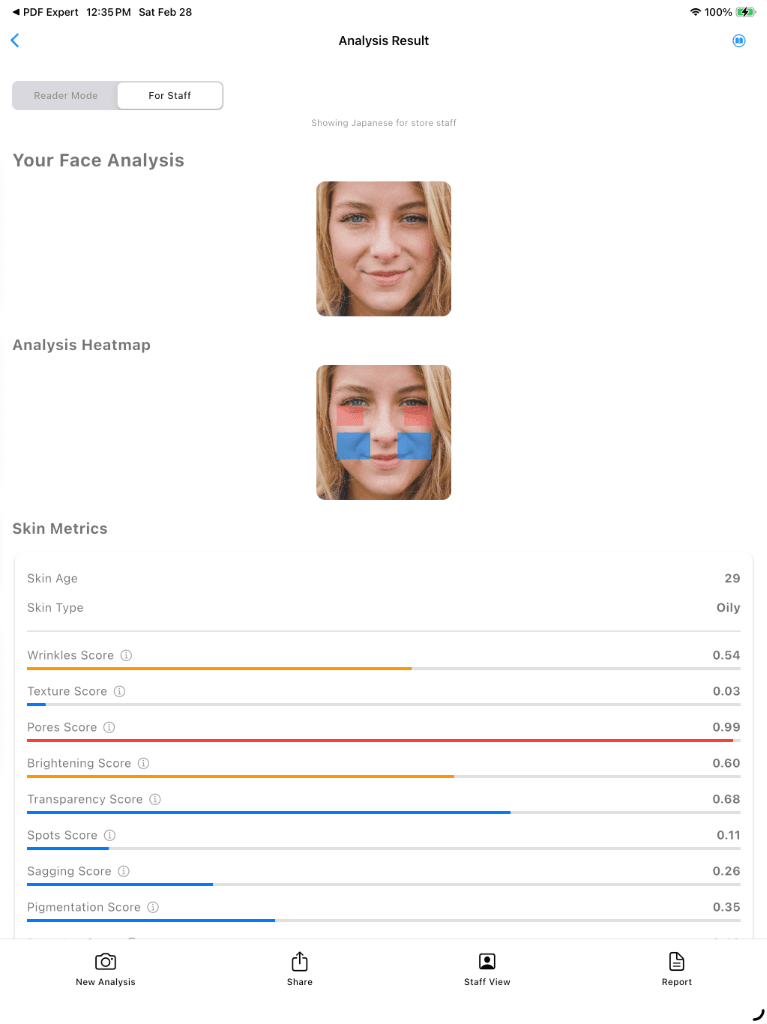
- Reader Mode (EN): Simple, customer-friendly display. Ideal for showing results directly to the guest.
- For Staff (JA): Expert mode for BS/BA. Provides localized consultation scripts and deeper biometric data for professional guidance.
Step 3: End Session (Finish)
When customer service is finished, be sure to press "Finish" at the bottom of the screen. This deletes the session information on the device and safely returns to the initial screen ready for the next customer.
2. About Scan Errors and Quality Checks
Visage AI checks the quality of photos to prevent incorrect product proposals. "Retry" may be displayed in the following cases:
- Too dark or backlit
- The tablet moves and blurs during shooting
- Part of the face is hidden, or features of the eyes/mouth cannot be read well
Stable analysis results can be displayed with consistent standards precisely because there are strict quality checks. When an error occurs, please ask them to move to a bright place and try again. If the customer does not wish to be photographed, or if retries fail twice, please switch to a normal consultation flow without forcing the scan.
3. Frequently Asked Questions (FAQ)
Q. The customer cannot face the front well
A. Hold the tablet a little higher and use gestures to guide them so that their face is in the center of the screen.
Q. It results in an error due to reflection from glasses
A. If possible, ask them to take them off temporarily, or change the angle of the face slightly and try again.
Q. The customer says "I want to use it on my own smartphone"
A. If they wish, please guide them to the Visage AI app. Supported languages and usage can be guided according to the display in the app.